Convert PDF into MS Word format using Google Docs
Over the internet, you will find many free services that transform PDF’s to MS Word format but they all have some or the other problems and limitations. Instead, you can use the free Google Docs OCR service to convert pdf to ms word format.
The reason I wouldn’t recommend using free services found on the internet:
- They create a copy of your personal document, which they might use against you. Official files and private documents should never be uploaded anywhere.
- They ask you to download free/paid conversion software that might actually be malware or bloatware.
- They ask your email address so that later they can send you spam emails.
Moreover, some of them have size restrictions and does not allow multiple conversions. In addition, their accuracy and speed to convert are doubtful.
Why am I recommending Google docs to convert PDF to MS word format? Because
- It’s efficient. I have been able to convert locked and protected files that were refused by other programs.
- Google Docs proprietary OCR technology lets you extract text and formatting from images and PDF’s. What’s more? It is available in 34 languages.
- No software installation is required. Anyone can do it instantly!
- You can easily sync Google Docs with your desktop local files.
Google Docs OCR to Convert
Follow these simple steps to convert and extract text from PDFs:
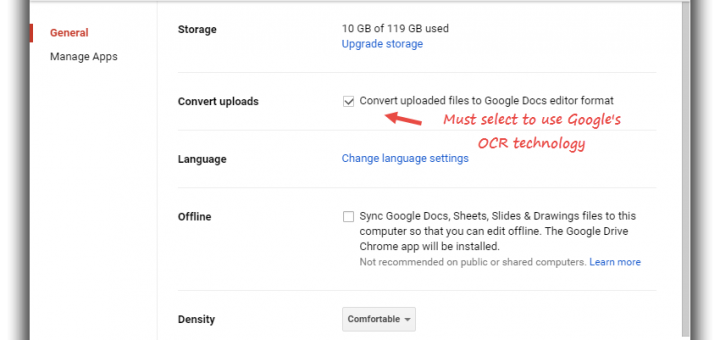
Step 1. Go to Google Drive settings.
Step 2. Select the option to make a Google Docs Format of your file. You must select “Convert uploaded files to Google Docs editor Format”.

Once the file is uploaded, navigate back to your Home page where all the files are listed. By default, your file will be at the top.
Step 3. Now open your file, go to file menu on the tab and select Download as > Microsoft Word (.docx).
Another way, if you don’t want to change the upload settings – Simply upload the PDF file, right click and select “Open with > Google Docs”. The PDF file will now be editable which you can later download in Word .docx format.
The only limitation is that you can convert only the files that are maximum 2MB in size. However, you can upload files up to 10GB in Google Docs. If your PDF file is really big, I would recommend Zamzar which is an excellent online conversation service for many types of files and is quite safe to use.






You said :
1) Go to Google Docs and start uploading your PDF.
When I go to docs.google.com, and I hit ‘upload’.
The only dialogue I get is to “choose a file from my computer, or drag and drop in an area”. The PDF file uploads. Done.
I never get a dialogue box to ‘select “Convert text from PDF and image files to Google documents”.’
Hi Gillian,
Google Docs has undergone UI overhaul and the present direct conversion are not present now.
However, you can still use Google’s OCR technology while uploading the PDF document. I have updated the article, let me know if you get stuck in any step.
I had no luck converting my pdf to ms-word. Never could find out how to use google OCR to edit either.
Maybe Google Docs has been updated as the reply says yo Gillian. I just uploaded on 5/16/17 and the same thing happened as it did to Gillian.
Also, you cannot copy or print forms you’ve filled out without subscribing. This wasn’t obvious until I’d finished and wanted to do both. If I had read through the entire web site, I might have caught their warning that “some features may not be available”
BLAH!
Though the intent was to help I too have spent 30 minutes attempting to follow these directions
No ‘convert uploads’ I used to be able to convert but had forgotten the steps – maybe because its a subscriber service now – don’t know But these instructions don’t work thank you for the try
As others have pointed out, Google is changing their feature set and the ability to convert PDFs might not be available always.
THANK YOU! Zamzar worked just perfectly. I highly recommend it. It’s free, it’s quick, it’s efficient, and it’s safe. I got a file converted from a .pdf to .docx in less than a minute!
Step 1: Upload to Google Drive
Step 2: Right click, open with -> Google Docs
Step 3: File -> download as -> Word Document
Done :)
Drive never converted PDFs to Docs during the upload. The feature was for Microsoft Word files. It was eliminated because of difficulty in converting files which could be very complex, the feeling being that the editing capability of Docs provided a safety net.
Use Drive to “Open As” a pdf with Docs.
It works for simple text reports, but it butchers complex formatting with illustrations, charts, columns.