How To Backup Profiles In Chrome Just Like Firefox
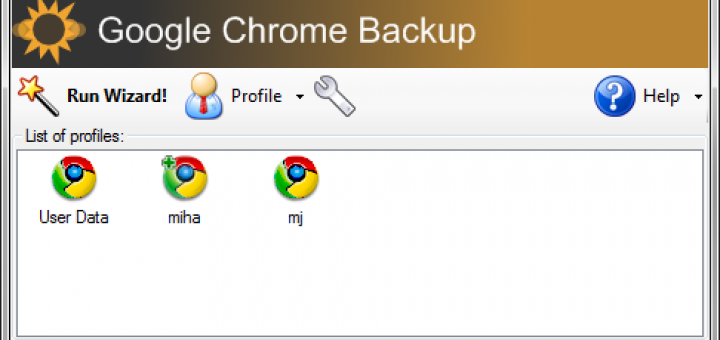
Ever wished to manage your profile in Google Chrome just like in Firefox? Google Chrome Backup is small and free tool to handle profiles effortlessly.
Why backup chrome profiles?
Even though there are slight chances of Chrome not working properly or Windows crashing but there are always possibility for some glitch. You can lose bookmarks, settings, history and other personal data. Google chrome backup will maintain these data for you.
After re-installing chrome, restoring your profile will make it look and work as it was before. You can even have multiple profiles with Chrome using this application.
This tool was built for windows only with .NET 2.0 pre-installed. You must also have Google Chrome version 0.2.149.27 and above to use this backup-manage-restore software.
This application works for Google Chrome as well as Chromium, [Chromium is portable and open source].Download Google Chrome Backup Software.
Additional Tip:
If you would like to do it manually, then you can copy the chrome profile folder and keep it somewhere safe. Chrome profile folder is User Data under the following location:
In XP – C:/Documents and Settings\[user name]\Local Settings\Application Data\Chromium\
and in Vista – C:\Users\[user name]\AppData\Local\Google\Chrome\







i want to know how to back up of google web-history
Hi Arvind,
I am really sorry to say, this isn’t possible. Due to security, data protection and other reasons Google has never disclosed their format of storing web history. Hence no one has ever come up with something to back up Google web-history.
I would suggest, an alternate though, to use firefox for all Google operations and back-up Firefox data (not profile). This would help you to look for previous searches.