Sort Gmail by Subject, Size, Labels and Sender to Organize Your Inbox
One feature I often miss in Gmail is its ability to sort messages. By default, Gmail sorts email by date, which doesn’t do a great job in organizing your inbox. There is no facility to sort emails by name, subject, size, and sender. Consider this scenario where sorting of emails can be very useful: You were on vacation and on returning you find hundreds of unread emails, and now you want to see only the unread messages by your boss between the specific dates.
One thing to note that Gmail is based on search and not sort, therefore things have to be done here in different ways. Let us look how you can sort Gmail messages:
- Sort by Size
- Sort by Sender
- Sort by Subject
- Search Mails withing Specific Dates
- Sort by Label
- Sort Read and Unread Mails
- Sort with filters
Sort Gmail by Size
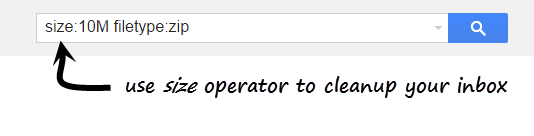
As organize by size cannot be done directly in Gmail, you can use Outlook or Thunderbird (email clients) to import your emails and then sort them by size (Importing Instructions). Though there is no way you can sort Gmail by the size of emails, you can however use the search operator “size:” to find large size mails. You can also use “smaller:” or “larger:” operators sort mails with lesser or greater than specified size.
You can also search for “filetype:zip” or “filetype:pdf” or any files that you regularly receive to find the large size mails.
Bonus tip: For those, whose inbox memory is full you can search for “has:attachment from:me label:sent” which will list mails sent by you and have a attachment. You can safely delete them to get some extra space.
Sort Gmail by Sender
There are two techniques to achieve sorting, use any one of the them depending on what suites you.
1. You can use the below script to sort active view by sender. For browser’s other than Chrome, just copy-paste below code to the address bar. For Chrome, go to Developer Tools by pressing F12 key, then select the console tab and then paste this code. Hit enter key and your mails will be sorted by sender. Note that only the current view will get sorted, so it is better to select maximum mails shown per page from Gmail settings.
!function(){function e(e){var t,n,a,r,l=e.getElementsByTagName("td");for(a=0;a<l.length;a++){if("yX xY "==l[a].className)for(t=l[a].getElementsByTagName("div"),r=0;r<t.length;r++)if("yW"==t[r].className&&(n=t[r].getElementsByTagName("span"),n.length))return n[0].innerHTML;if(l[a].hasAttribute("role")&&"link"==l[a].getAttribute("role"))for(t=l[a].getElementsByTagName("div"),r=0;r<t.length;r++)if("y6"==t[r].className&&(n=t[r].getElementsByTagName("span"),n.length))return n[0].innerHTML}return""}function t(e,t){return e=e[0].toLowerCase(),t=t[0].toLowerCase(),t>e?-1:e>t?1:0}function n(n){var a=Array.prototype.slice.call(n.getElementsByTagName("tr"),0);if(a.length){for(var r=a[0].parentNode,l=[],g=0;g<a.length;g++)l[g]=[e(a[g]),a[g]];for(l=l.sort(t),g=0;g<l.length;g++)r.appendChild(l[g][1])}}for(var a=document.getElementsByTagName("table"),r=0;r<a.length;r++)if("F cf zt"==a[r].className){n(a[r]);break}}();2. The second method is a simple implementation of search concept. Hover over any name/contact’s image and select Emails from the contact card to view all incoming(received) or outgoing(sent) mails with selected name. To view only received mails, search with from:sender’s name in Gmail inbox. Find the complete tutorial here.
Sort Gmail by Subject
To sort your mails by subject, we will use a custom code to arrange the current set of emails that you are viewing.
If you are using any browser other than Chrome, then simply copy paste the below code to address bar and press Enter Key. For Chrome, first press the F12 key to enter Developer Tools and then click on Console tab. Now paste the below code and press enter. This code will only sort the current set of mails that you are viewing.
!function(){function e(e){var t,a,n,r,l=e.getElementsByTagName("td");for(n=0;n<l.length;n++){if("xY a4W"==l[n].className)for(t=l[n].getElementsByTagName("div"),r=0;r<t.length;r++)if("y6"==t[r].className&&(a=t[r].getElementsByTagName("span"),a.length))return a[0].innerHTML;if(l[n].hasAttribute("role")&&"link"==l[n].getAttribute("role"))for(t=l[n].getElementsByTagName("div"),r=0;r<t.length;r++)if("y6"==t[r].className&&(a=t[r].getElementsByTagName("span"),a.length))return a[0].innerHTML}return""}function t(e,t){return e=e[0].toLowerCase(),t=t[0].toLowerCase(),t>e?-1:e>t?1:0}function a(a){var n=Array.prototype.slice.call(a.getElementsByTagName("tr"),0);if(n.length){for(var r=n[0].parentNode,l=[],g=0;g<n.length;g++)l[g]=[e(n[g]),n[g]];for(l=l.sort(t),g=0;g<l.length;g++)r.appendChild(l[g][1])}}for(var n=document.getElementsByTagName("table"),r=0;r<n.length;r++)if("F cf zt"==n[r].className){a(n[r]);break}}();
Sort Gmail by Labels
In Gmail, you can drag-and-drop a label, which makes labeling quite easy. You can also select which labels to show and which one to hide from Gmail’s Settings page. However, unlike outlook that arranges folders automatically there is no such sorting facility in Gmail.
This greasemonkey script lets you sort labels as you last used them. Example: From the set of labels X,Y and Z suppose you recently used Y. So, the labels will be sorted by Y,X and Z.
You can download this script here and you must have greasemonkey firefox addon or Chrome’s tampermonkey extension to use it.
How to Search for Mails within Specific Date
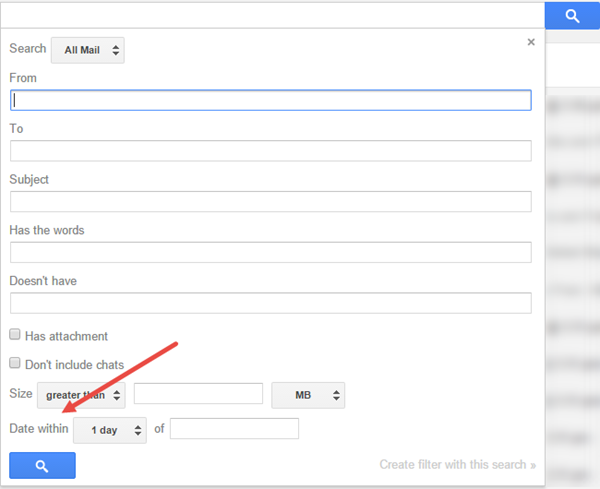
Gmail by default sort mails by date. To find mails between specific dates in Gmail, you will have to do an advance search. Click on the arrow inside Gmail search box and then choose “Date within” search criteria. There is no field for “From” and “To” date to search however entering only one date and then selecting date within range will give same results.
Sort Read and Unread Mails
This one is easy. Just hover over Inbox link and click on the drop arrow. Select “Unread First” and your unread mails will be listed first and then the read emails.
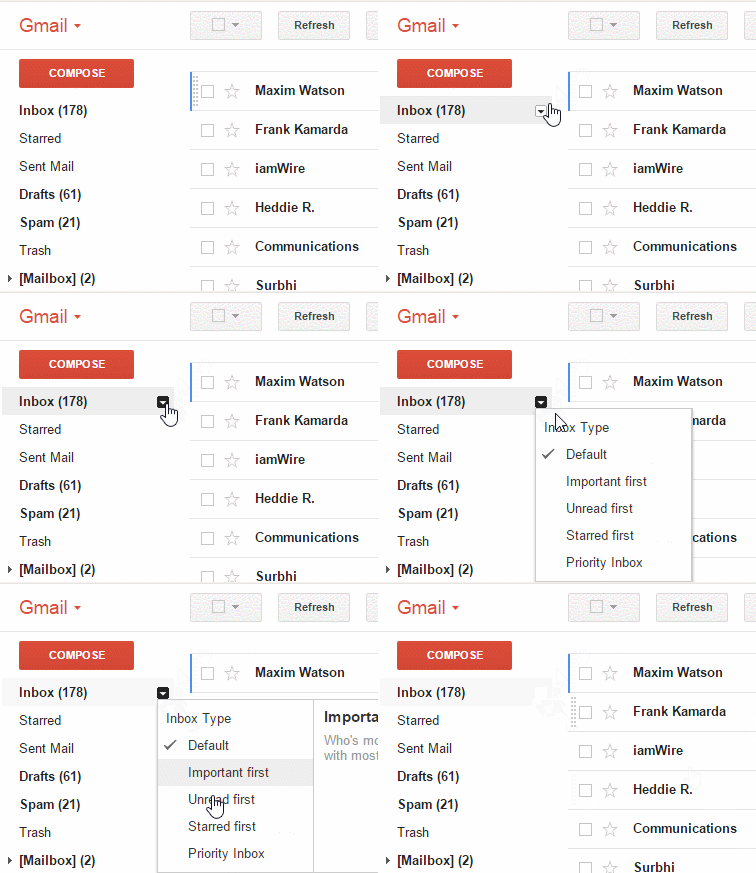
You can also search all unread mail by entering “is:unread” in the Gmail search box. Similarly, enter “is:read” to search for all read mails.
Sort Incoming Mails with Filters
You probably know that, you can use Gmail id with a plus (+) to create a new version of your account. Suppose your email id is gtricks@gmail.com. Now, even if you subscribe any website with gtricks+blog@gmail.com , then also all the mails will come to you only. You can create as many versions you want by appending any word with your username with plus (+) symbol.
Now the trick is to use Filters and Multiple Inboxes with this feature to sort different types of incoming mails.
Go to Gmail Settings > Filters > Create New. In the “To” field, specify your alias id with plus sign and then chose a label for it. Now go to Labs under Gmail settings and enable Multiple Inboxes. After saving you can see Multiple Inboxes tab within settings. For the different panes, use the labels that we have configured with filters. That’s all, you will now have different panes in Inbox based on different labels or senders.
Conclusion
We have tried to find workarounds for different types of sorting in Gmail. If you have any difficulty in implementing these workarounds, feel free to contact us. We need to understand that Gmail is different from the traditional mail clients like outlook or yahoo. It’s a very powerful application, only if you can learn to search and make proper filters. Here are some of the search operators that you will find useful in daily life.
| Operator | Definition | Example(s) |
|---|---|---|
| from: | Used to specify the sender | Example – from:amy Meaning – Messages from Amy |
| to: | Used to specify a recipient | Example – to:david
Meaning – All messages that were sent to David (by you or someone else) |
| subject: | Search for words in the subject line | Example – subject:dinner
Meaning – Messages that have |
| OR | Search for messages matching term A or term B* *OR must be in all caps |
Example – from:amy OR from:david Meaning – Messages from Amy or from David |
| – (hyphen) |
Used to exclude messages from your search | Example – dinner -movie Meaning – Messages that contain the word “dinner” but do not contain the word “movie” |
| label: | Search for messages by label* *There isn’t a search operator for unlabeled messages |
Example – from:amy label:friends Meaning – Messages from Amy that have the label “friends”Example – from:david label:my-familyMeaning – Messages from David that have the label “My Family” |
| has:attachment | Search for messages with an attachment |
Example –
from:david has:attachment |
| list: | Search for messages on mailing lists | Example – list:info@example.com
Meaning – Messages with the words info@example.com in the headers, sent to or from this list |
| filename: | Search for an attachment by name or type | Example –
filename:physicshomework.txt Example – |
| ” ” (quotes) |
Used to search for an exact phrase* *Capitalization isn’t taken into consideration |
Example – “i’m feeling lucky” Meaning – Messages containing the phrase “i’m feeling lucky” or “I’m feeling lucky”Example – subject:”dinner and a movie” Meaning – Messages containing the phrase “dinner and a movie” in the subject |
| ( ) | Used to group words Used to specify terms that shouldn’t be excluded |
Example – from:amy(dinner OR movie) Meaning – Messages from Amy that contain either the word “dinner” or the word “movie”Example – subject:(dinner movie) Meaning – Messages in which the subject contains both the word “dinner” and the word “movie” |
| in:anywhere | Search for messages anywhere in Gmail* *Messages in Spam and Trash are excluded from searches by default |
Example – in:anywhere movie Meaning – Messages in All Mail, Spam, and Trash that contain the word “movie” |
| in:inbox in:trash in:spam |
Search for messages in Inbox, Trash, or Spam | Example – in:trash from:amy Meaning – Messages from Amy that are in Trash |
| is:starred is:unreadis:read |
Search for messages that are starred, unread or read | Example – is:read is:starred from:DavidMeaning – Messages from David that have been read and are marked with a star |
| cc: bcc: |
Used to specify recipients in the cc: or bcc: fields*
*Search on bcc: cannot retrieve messages on which you were blind carbon copied |
Example – cc:david Meaning – Messages that were cc-ed to David |
| after:
before: |
Search for messages sent during a certain period of time* *Dates must be in yyyy/mm/dd format. |
Example – after:2004/04/16 before:2004/04/18Meaning – Messages sent between April 16, 2004 and April 18, 2004.* *More precisely: Messages sent after 12:00 AM (or 00:00) April 16, 2004 and before April 18, 2004. |
| is:chat | Search for chat messages | Example –
is:chat monkey |
| deliveredto: | Search for messages within a particular email address in the Delivered-To line of the message header | Example – deliveredto:username@gmail.com Meaning – Any message with username@gmail.com in the Delivered-To: field of the message header (which can help you find messages forwarded from another account or ones sent to an alias). |
[From Google support]
Related : Best Gadgets for Gmail







Thanks for the share.. Coding is the best part which i always love to play with..
Abhishek, thanks for the detailed information, it is really informative.
What an amazing number of posts, both hear and at myriad other sites, discussing a workaround for a dirt simple feature that should have been in GMail right from the start. I mean having to write code for a simple sort? Really??
Does Google ever read any of this?
Excellent site with useful ways to sort out Gmail’s virtually useless on-line email client. I cannot imagine how anyone with half a brain could think it un-necessary to have a sort by the different columns.
I use Thunderbird as my client so as to merge all my email accounts, but Gmail’s genii insist that I have to go into gmail online to both delete old messages (max 100 at a time!!!!) and to see what gmail has suddenly started to consider spam and won’t pass on to T’bird.
And now I find that gmail block my account every time I use my computer when away from home. Now how can that be justified?
Anyone with a better email client, please post details!
Thunderbird is the best option we have. Apart from that here are my recommendations –
Windows 10 Mail: If you want to have basic features, this is neat however it is available only on Win10.
MailBird – It is a fantastic option if you are less concerned about privacy.
Opera mail – free and good but needs Opera.
Guess!
Superb workarounds. But the point is, they are still workarounds. I am so gutted to have given all my mates my gmail email as my primary, I am sorely tempted to relocate to yahoo and just do an email-all to let them know the new address. Surprising how cra p google’s email product is, particularly given how good their other products are.
Well that explains it pretty well and helps me decide that I’m going to have to lose GMail altogether.
Everything else about Google products makes me want to go buy some of their stock. But this one leap into the abyss of computer gobbley-gook convinces me that maybe Google is no different than most organizations: there must be some idiots in very high positions, who somehow have concluded that it is all right to ignore what their customers want.
This comment is to Google development only, and likely unread, but just to clarify nothing personal to any individuals or their comments.
I understand the method used and I recently worked with individuals, just like the gmail developers, who were gung-ho, tally ho and yippie ki-yay in their insistance upon our private school’s switch from Outlook to Gmail until they screwed up by doing so and those individual Gmail inboxes were full of unsortable mail. Switched them back fast! Brilliant research and work!
I “get” that it’s a search and not a “sort” engine, but it doesn’t work for mail; making your client do the work you should have done makes gmail a “0” for efficiency.
Tried Gmail for about 30 days and can’t get used to not having folders, sort by date/subject/email address, etc. Gmail missed the boat and I’ll be back to using Yahoo email.
Labels are not the same as folders and it makes Gmail totally useless for 99% of the people that use it for work. Casual consumers may find it usable, but serious people won’t. So Google will be loosing who knows how many pair of eyes looking at email ads.
Another very annoying “feature” is that it saves you email in real time every second. I’m a fast typist and 100% of the time it misses letters as I type in when it saves.
I guess regressing back 20 years in email functionality is considered progress by Gmail. It’s time to fire their developers and hire ones that actually use it so they can listen to the users.
thank you for this info! I was so frustrated with gmail because of not being able to “mass delete” by sender…and now I can! much obliged!
Thank you so much.
This is very useful.
THANK YOU!!! Sorting by attachment is a lifesaver for my over quota mailbox!
This was very helpful!!!
I do like GMail but the lack of inbuilt sorting obviously annoys many current users and repels potential customers. Google’s unbending stance puts the ‘rightness’ of their philosophy before the wishes of the users, an attitude common at Microsoft (who conditioned millions to think in menus, then forced them to use the ridiculous Office ‘ribbon’, high-handedly omitting a Classic View option) and at EBay (who scrapped their powerful wildcard search method and thus emasculated their search engine). Ignore our howls of protest and you’ll be punished in the market place. This Linux Mint PC I’m using has all-free software. Works beautifully, and comes from a product-responsive community who always stay in touch with their user base.
I do agree. For the OS perspective, give a thought to Chrome OS that’s built for the future.
Really did help – Thanks
How do I get sent messages to have labels that match the received ones? E.g. if I reply to a message that I labeled Foo, how do I get the reply to automatically get labeled foo so the conversation doesn’t show up in ‘has:nouserlabels’
Hello Sherwood,
If I understand correct, you want to see received messages with same label. For that, switch on the Conversation View from Gmail settings > General tab. With the conversation view, the replied mail will have same label as the received mail and both will be shown in a thread.
To search for only replied mails which particular label, use the search – in:sent label:your_label
I was so hopeful…. oh well. I copied/Pasted the code … and got the error message at the bottom.. any thoughts?
!function(){function e(e){var t,n,a,r,l=e.getElementsByTagName(“td”);for(a=0;a<l.length;a++){if("yX xY "==l[a].className)for(t=l
[a].getElementsByTagName("div"),r=0;r<t.length;r++)if("yW"==t[r].className&&(n=t[r].getElementsByTagName("span"),n.length))return
n[0].innerHTML;if(l[a].hasAttribute("role")&&"link"==l[a].getAttribute("role"))for(t=l[a].getElementsByTagName("div"),r=0;re?-1:e>t?1:0}function n(n){var a=Array.prototype.slice.call(n.getElementsByTagName(“tr”),0);if
(a.length){for(var r=a[0].parentNode,l=[],g=0;g<a.length;g++)l[g]=[e(a[g]),a[g]];for(l=l.sort(t),g=0;g<l.length;g++)r.appendChild(l[g][1])}}for
(var a=document.getElementsByTagName("table"),r=0;r<a.length;r++)if("F cf zt"==a[r].className){n(a[r]);break}}();
ERROR MESSAGE:
VM11345:6 Uncaught TypeError: Cannot read property '0' of undefined
at e (:6:2)
at n (:12:68)
at :14:96
at :14:111
at Object.InjectedScript._evaluateOn (:878:140)
at Object.InjectedScript._evaluateAndWrap (:811:34)
at Object.InjectedScript.evaluate (:667:21)e @ VM11345:6n @ VM11345:12(anonymous function) @ VM11345:14(anonymous function) @ VM11345:14InjectedScript._evaluateOn @ VM11336:878InjectedScript._evaluateAndWrap @ VM11336:811InjectedScript.evaluate @ VM11336:667
Really sorry if this is not working. I will troubleshoot and update you soon.
This is unbelievable that Google hasn’t bothered to add sorting to Gmail. It’s like building a car and not bothering with seats or windows. Sorting is an integral part of managing tabular data (listable data). Massive usability fail.
Great!, so easy although I am still looking for google to include the “sort by sender” option in their interface. I think that specially for those who are regular consumers this sorting is much prefered because we are looking for friends and frequently contact persons and not for conversations.
If your code worked properly, it *would be* an excellent work-around for Google’s Failure.
However, the sort-by-sender code you wrote does not seem to work. Can you explain in a step by step instructions how to use it? Pasting into the Address Bar makes no sense. It just returns a Google search result page. How do you tell it to execute the code?
STEPS
– Using Firefox browser v41 or 42
– Login to my gmail account and display email on the page.
– Copy and paste your code into the Address Bar.
[CODE]!function(){function e(e){var t,n,a,r,l=e.getElementsByTagName(“td”);for(a=0;a<l.length;a++){if("yX xY "==l[a].className)for(t=l[a].getElementsByTagName("div"),r=0;r<t.length;r++)if("yW"==t[r].className&&(n=t[r].getElementsByTagName("span"),n.length))return n[0].innerHTML;if(l[a].hasAttribute("role")&&"link"==l[a].getAttribute("role"))for(t=l[a].getElementsByTagName("div"),r=0;re?-1:e>t?1:0}function n(n){var a=Array.prototype.slice.call(n.getElementsByTagName(“tr”),0);if(a.length){for(var r=a[0].parentNode,l=[],g=0;g<a.length;g++)l[g]=[e(a[g]),a[g]];for(l=l.sort(t),g=0;g<l.length;g++)r.appendChild(l[g][1])}}for(var a=document.getElementsByTagName("table"),r=0;r<a.length;r++)if("F cf zt"==a[r].className){n(a[r]);break}}(); [/CODE]
– RESULT: The page now displays a Google search results page as if I entered a search string into the Address Bar.
– ERROR MESSAGE:
"if" (and any subsequent words) was ignored because we limit queries to 32 words.
How is typing a sort scenario quicker, easier, more effective than being able to sort by COLUMN? This is the main reason I avoid using the online gmail web page. Google just doesn’t get it… gmail should stop trying to be Apple by forcing us to do what they think is a better way to work – it isn’t
The F12 > console > enter code thing is awesome.
Is there a way to combine that with is:unread somehow?
So to see all my UNREAD emails sorted alphabetically?
Unfortunately, there is no way to sort unread mails alphabetically.
I sorted using the code in #2, however, when I click on the emails, I get something different.
Hello, how to reverse sorting of sender? Thank you
Hi,
I tried the sort by sender. It looks like it sorts, but if you click on an email, you will open the mail that was at this line before you sorted… So it looks like the sort does not take into account the internal identifyer of the email…
So, it is useless and even dangerous…
Sorry for the bad remark, but I nearly deleted very usefull mail .
But I appreciate the work done.
Regards
It use to open the selected mail, but looks like Gmail has changed the internal links. Sorry for your loss.
this is SO helpful!!! I have been wanting to sort gmail by sender for YEARS.
How about sorting the entire Inbox by the “Date Of Last Reply”
Hello, I have been looking for a way to sort gmail alphabetically and I was so excited finding your site that post the most close answer for me. I am using chrome so I cut and paste your code into source window. Unfortunately the code didn’t work as I expected. There is no error, I got a “true” after I pressed return key. Can you let me know if I did anything wrong or the code needs to be updated? Really appreciate!
Clarification – it didn’t work on any gmail folder (I tried several) but it is working on inbox. Is it possible to modify the code to make it work on different lable?
Thanks!
Wow, a date at the top of the article sure would help to know if this information is outdated and if Gmail ever got around to ushering itself into the 20th century
We keep the post published date at bottom of the article since we believe that the most important information should be the first i.e. article on top and rest all meta information at the bottom. Many sites (who do not publish news articles) follow this principal. Sorry for the inconvenience.
Open gmail
1) If you have not already done so create folders for sender names and subject matter
2) Empty trash folder
3) Select Inbox
4) Find a single message from the sender you require and hover pointer over it, a dropdown box will appear. Click in the email message icon at the bottom of the box then all the messages from your selected sender will be collated and listed in a single column in date order
5) From first dropdown box at top of screen select All and all messages will now have a tick and be highlighted yellow, also a Trash bin icon will have appeared on the dropdown line above the messages.
6) Select Trash and click, now all the sender messages will be transferred to the empty trash bin
7) Now open the Trash folder and all the messages from a single sender will be there in date order
8) Repeat action 4) and select All and in addition to tick & highlight there will now be a move to icon on the top line. When you click on move to a dropdown list of all your folders appears. Select which folder you want and click. then all your mails will be transferred to the selected folder and the trash box will be empty ready for another transfer of different sender files
9) You can leave your inbox for weeks and still select and file hundreds of messages at once by this method
There is a search operator for unlabeled messages: has:nouserlabels
That’s really nice to know. Let me include it in our Gmail Search Operators list.
Google’s insistence on forcing us to search for EVERYTHING instead of allowing us to scan a sorted list is why I now use a portable version of Thunderbird with the Lightning calendar plugin on a password protected flash drive.
I can now sort emails any way I want while being able to scan a sorted list to find the email that I’m looking for.
Google does not seem to understand that if you’re not sure of what you’re searching for, finding the correct keywords can be difficult to impossible.
Google wants you to search because they save and sell the info they learn from your searches. THEY HAVE IT ALL.
Apple/Mac users- the Apple ‘Mail’ app included with OS X has long included the ability to sort by: Date, From, Size, Subject, To, Unread, and a couple other options including ascending and descending options.
Another reason you can’t sort, and it’s exactly why we WANT to sort: email takes up space, for which they can charge you if you go over your limit. Making it easier to sort, find and delete email is not on their priority list, and obviously they aren’t losing too many customers, so my suggestion is to view your email in Outlook. Boom. Problem solved.
i tried that on the iphone but it stop synching. i use k-9 on android and it has sorting. but have not found other than outlook that has sort
you can use k-9 if you have android, it has sort button without coding
however have not found the equivalent for ios/phone
I did this. It worked. But how do I undo it?
Now that ive done this. How do i Undo it?
How can i get my gmail back to normal after doing this?