Have you ever been curious about where you were on a particular day the previous year or the year before? Maybe you wanted to remember the name of the restaurant you dined at during a vacation. The good news is Google Maps has been collecting information about your location whereabouts since you signed in to the Maps app with your Google account. Learn to manage your location history on your phone & PC using Timeline by Google Maps.
Use Timeline to Control & Manage Your Location History
When I first gave the feature a try in 2015, I was surprised to find that Google had remembered my location whereabouts since late 2012 which coincides with when I bought my first Android smartphone. But the usefulness of this feature varies depending on how often you enable location services.

RELATED: Send Directions to Your Phone from a PC via Google Search & Maps
Using Timeline on Android
While most users have the feature enabled by default, first-time users may receive this message.

Step 1: Launch the Maps app and press the hamburger icon.

Step 2: Select Your timeline from the list of options.
Step 3: This will show Timeline Mode where you can see your location data by swiping left and card similar to navigating images.
Pressing the calendar icon on the top right lets users browse by year, month & date. If a location or mode of transport is unclear, it’s also possible to edit the location by manually entering it.

You can even add notes and name each day but the feature is pretty meaningless since this information isn’t searchable and also doesn’t synchronise with Google Calendar according to my testing.

To turn off location tracking & reporting, go to the Settings page and select Personal Feed. Under location settings, users can turn on & off their location history & also delete their entire location history. Turning on Timeline emails will send you a summary report of your location history to your inbox every month. Additionally, there’s Google Photos integration which will insert images based on location and date in specific places. This can be enabled by turning on the Google Photos switch.

Using Timeline From a Desktop Browser
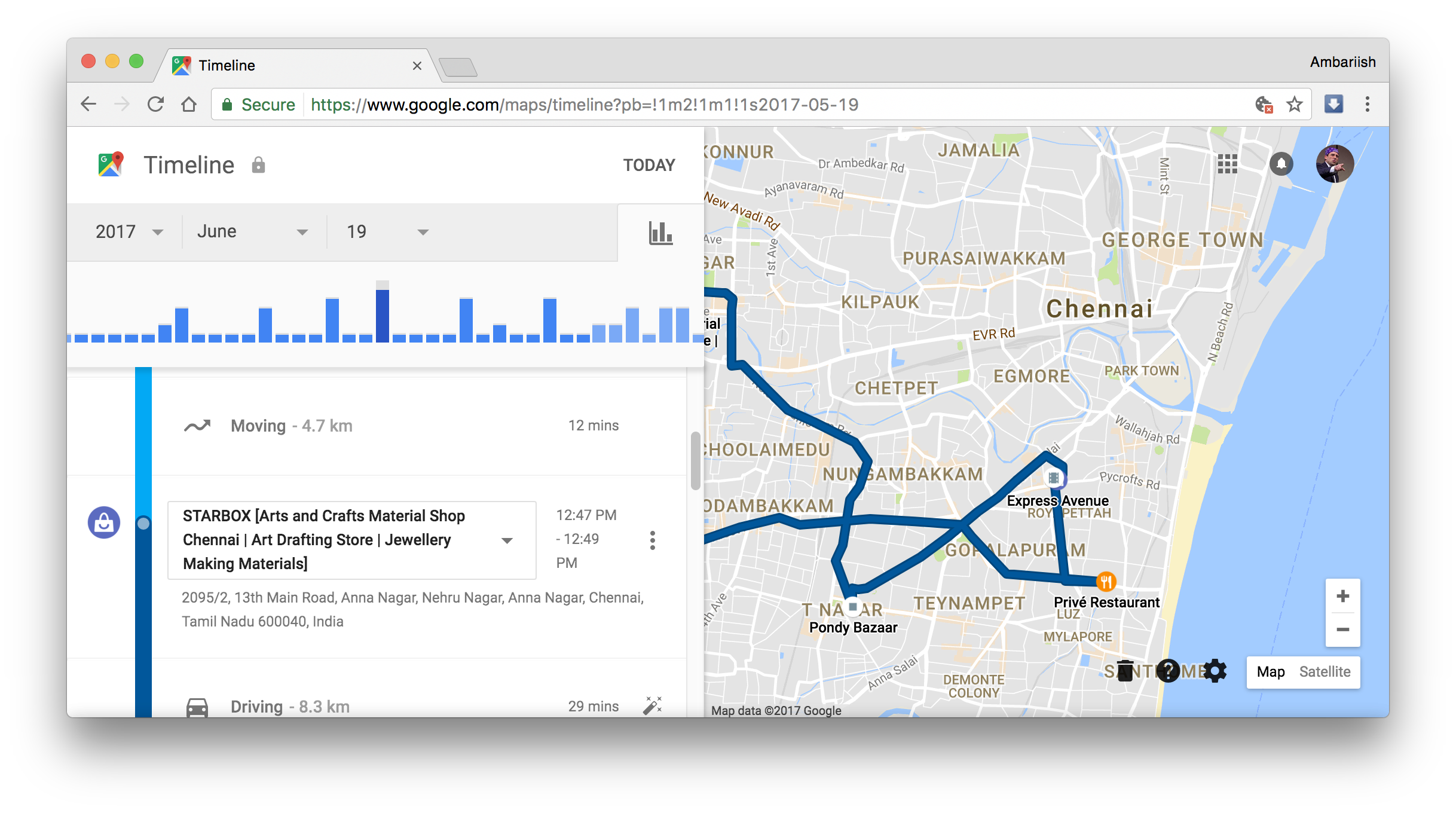
If you’re on the computer & would like to check your location data, it’s also possible by visiting Timeline’s own desktop page. Opening the website will present you with four options.
- A drop-down to select a specific day, month & year. Here the user can directly navigate to the year of their choosing and look for specific information on where they have been.

- Ability to check out your most visited places according to the data recorded on the phone. Additionally, you can set your work and home coordinates directly from the page.

- A close look at the Timeline on a day-to-day basis.
- The ability to pause location history if you’d like Google to stop recording your location whereabouts.

- Visiting a listing you’ve frequented to will show information about your last visit directly in the listing.

Conclusion
While not the most accurate at tracking at times, with the ability to correct or modify data & integrate photos from Google Photos, Timeline lends itself as an extremely useful feature that acts to serve as a location journal for users to look back and reminisce.
RELATED: Google Maps New Update Suggests Ideal Time To Leave For A Place