Organize Gmail By Sending Emails Directly To a Folder (Label)

Here at Gtricks, we have a keen interest in helping keep your Gmail account organized. From interesting tips to hacks to sorting emails, we share everything that could help simplify email management. And today, I have another cool trick for you to organize incoming emails.
Recently, I was having a hard time keeping up with dozens of new emails every day. Out of which, most were not time-sensitive, but they made me skip some important emails. To deal with this issue, I simply created a few labels (aka folders) in Gmail and filtered less important incoming emails to those labels. Now I have a clean inbox with only important messages, and I can check on less important ones by simply visiting those labels.
Let’s see how you can also send certain emails to a folder in Gmail and organize your inbox.
Create a new label (folder) in Gmail
To get started, you’ll first need to create a label in Gmail where the particular emails will be sent. Here’s how to create a new label:
1. Click on the “More” button in the Gmail left panel and then click on “Create new label”.

2. Now enter the name of the label in the first text box and click on “Create”. Make sure you enter a relevant name that matches the type of emails that will go there.
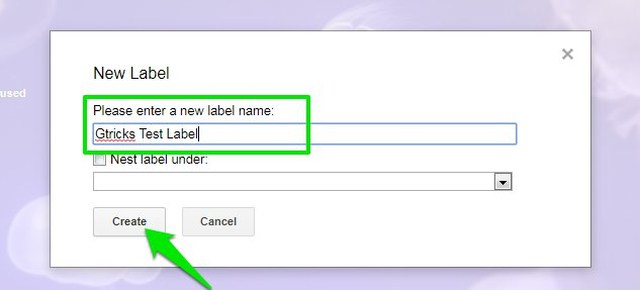
The label will be created and listed in the left panel under the Categories. You can repeat this process to create as many labels as you need.
Filter emails to a folder in Gmail
Once the folder is ready, it’s time to create a filter to automatically send emails to that folder. Before creating a filter, you first need to set up filter criteria using the Gmail search option. Although you can use Gmail search operators to create criteria, using the advanced search options form is much easier.
To access it, click on the upside-down arrow icon at the end of the Gmail search bar. Some editable fields will open up where you can set up the search criteria. You need to fill out this form according to your needs, but to make things easier, I am explaining what information each field requires.

From: Here you can enter the email address of one or more people to whom the emails you want to filter. If you don’t want to filter emails from specific people, then leave this field empty.
To: This field is only useful for incoming messages if you have merged multiple email accounts and want to filter their emails separately. If that’s not the case, then leave it empty.
Subject: Here you can add keywords that could appear in the subject field of the emails you want to send to the folder. To add multiple keywords, you’ll have to separate them using a vertical bar (|). For example, “Free|review|checkout”.
Has the words: You can list keywords here that could appear anywhere inside the email you want to filter. Again, you’ll have to use a vertical bar (|) to separate multiple keywords.
Doesn’t have: You can use this field to add words that should not be filtered even if the above fields match the criteria. You particularly want to use this field to protect important emails from being filtered.
Now that you know what each field requires, you should have no problem setting up the filter criteria. Just remember that you don’t have to fill in all the fields, only fill in the ones that are enough to filter the required emails. After filling out the search form, click on the “Create filter with this search” button at the bottom-right corner.

Here check the checkbox next to the “Skip the Inbox” and “Apply the label” options, and then choose the label from the drop-down menu next to it.
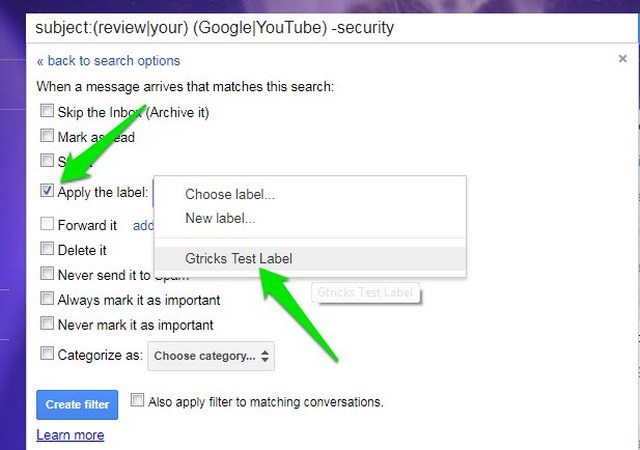
Afterward, check the checkbox next to “Also apply filter to matching conversations”, and then, click on the “Create filter” button to create the filter.

Now all your existing emails and new emails matching the filter criteria will automatically go to the folder (label) you assigned.
Ending words
Apart from helping me organize my inbox, I also find this trick handy for saving interesting content in Gmail and automatically organizing it under labels. For example, you can create a label for interesting articles and whenever you find an interesting article worth reading later, simply email it to yourself with the matching filters and it will be saved in the label.
Let us know in the comments if you know of any other interesting way to organize emails in Gmail.







Doing it your way doesn’t work – I’ve done it and all emails stay in the inbox but does show the label
You have to tick “Skip the inbox (Archive it)” as well as the folder/label when you create the filter. Then the emails will just go to the folder. Sometimes it seems like it would be simpler to go back to paper mail and a filing cabinet lol.
The problem is, I don’t want these filtered emails in my inbox at all. I’ve set up the filter just as you have done, but I still have the emails arrive in my inbox with the label attached. I want these filtered emails to go *directly* to the folder. Yahoo Mail can do this, I’m not sure why Google can’t do it.
Oops, didn’t see the response before. I’ll give that a whirl, but I’m not sure that will truly work either. Archiving email is a different process. I still want the email to show up as unread in the folder.
Same as Scott: I want these filtered emails to go *directly* to the folder, and skip the primary Inbox. Do I need to close out and re-open Gmail?
This was so helpful! Thank you for the write-up!
I saw a post once about giving someone an email with a bit added to send it straight to a label is that possible?
Checking the “Skip the inbox” label certainly sends messages directly to the desired folder/label. The “(archive it)” wording makes it counter intuitive.
I guess that with no other filter criteria set that’s exactly what this checkbox does.
The article would be excellent if it addressed this nuance.
The comments helped me. The archive it worried me, but doing this fixed the issue of the filters. Thanks for the article.
I have created the rule and now I want to edit it/delete. I am missing some important emails I need to know about. I want the emails to stay in my inbox and not going into the folder I created. How do I undo this process? Thanks
Thank you for the time and effort you spend helping me :).
Brief, simple, clear and right to the point, excellent!!!